
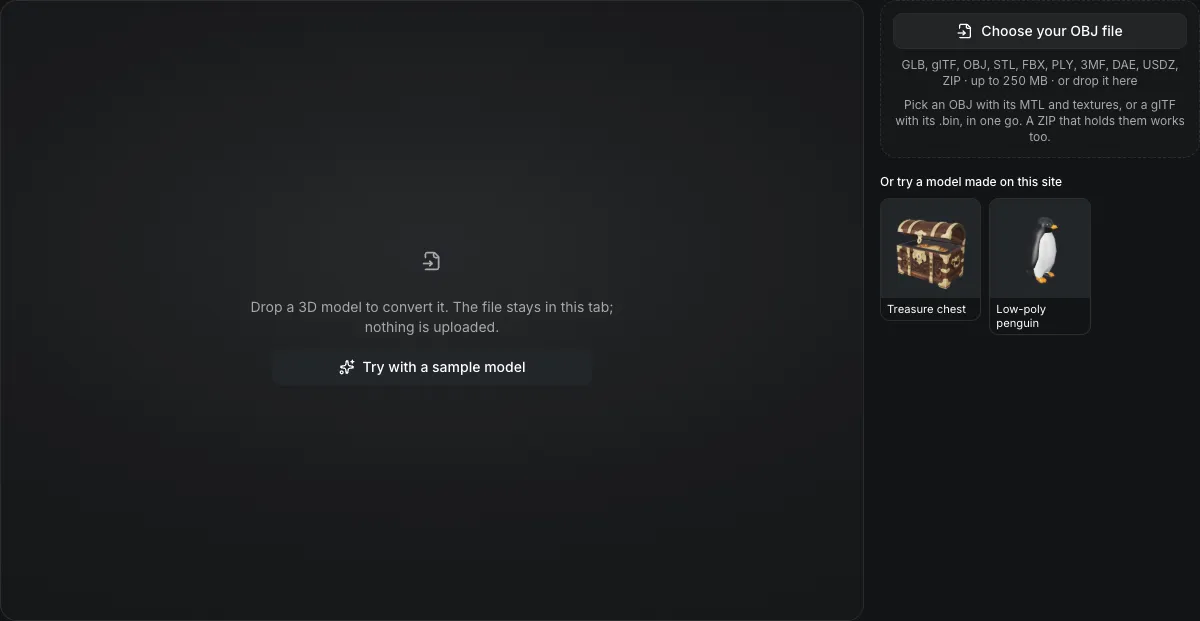
GLB, glTF, OBJ, STL, FBX, PLY, 3MF, DAE, USDZ, ZIP · up to 250 MB · or drop it here
Pick an OBJ with its MTL and textures, or a glTF with its .bin, in one go. A ZIP that holds them works too.
Or try a model made on this site
Drop a 3D model to convert it. The file stays in this tab; nothing is uploaded.
OBJ to STL converter
The OBJ to STL converter turns an OBJ into a binary STL for your slicer in your browser. An OBJ stores no unit, so you tell the converter what one unit is; the part is then turned Z-up, written in millimetres, and can be scaled to an exact print height. Materials are not carried, and nothing is uploaded.
OBJ to STL in numbers
Read the numbers as millimetres, centimetres, metres or inches; the default is metres.
Y up by default, or Z up for an OBJ exported from CAD.
Scale the part to 28, 50, 100 or 180 mm tall, or keep its true size.
The MTL and textures are not part of an STL; only the triangles are.
Watch an OBJ become an STL
Recorded on this page, about 1.25 times faster.

Treasure chest, OBJ to STL
The OBJ chest is written as a 1.3 MB STL at 832 × 519 × 758 mm, Z-up for the slicer. Its base-color texture, UVs and normals are listed as not written, since STL stores triangles only. Repair for printing, Add a base and Cut with a plane follow.
What carries over
What survives OBJ to STL
The shape and its size survive; the surface description does not.
| What | What happens |
|---|---|
| Every face as trianglesKept | Quads and larger faces are written as triangles, and nothing is decimated or repaired. |
| Size, once the unit is rightKept | The OBJ's numbers times the unit you chose are the millimetres in the STL. |
| Orientation for the slicerChanged | The part is stood on the bed with Z up, whichever axis the OBJ called up. |
| MTL, textures and normals do notNot carried | An STL has no material, UV or vertex-normal storage, so the panel lists them as dropped. |
Telling the converter what one OBJ unit is
The unit buttons appear as soon as an OBJ is loaded.
Metres is the default
An OBJ carries no unit. Generators and most game tools write metres, so a model 0.2 units wide becomes 200 mm.
Millimetre OBJs need the mm button
A part modeled in millimetres and read as metres comes out 1,000 times too large. Choose mm and the same 20 units are 20 mm.
Z-up exports need the up axis
CAD and scanning software often write Z up. Choose Z up and the part is turned upright before it is written.
From an OBJ to an STL in three actions
Leave STL selected; the unit buttons appear once the OBJ opens.
- 1
Pick the .obj; an MTL and textures can come with it, but the STL will not use them.
- 2
Compare the size the page shows with the size you expect, and change the unit until they match.
- 3
Choose a print height if you want one; the STL downloads with it in the name.
Limits of OBJ to STL conversion
The result is as printable as the OBJ was.
Not made watertight
Open edges and flipped faces in the OBJ are written as they are; run the repair tool before slicing.
Color cannot travel
A colored print needs a 3MF or OBJ from the multicolor tools, not an STL.
The unit stays your call
The converter cannot tell a millimetre OBJ from a metre OBJ, so check the size before you slice.
Questions about OBJ to STL
Answers about units, orientation and materials.
Convert an OBJ to STL now
Drop the .obj above, set the unit and save the STL.