
PNG, JPEG, WebP · up to 25 MB · or drop it here
Use a flat, evenly lit photo of a surface (stone, wood, fabric) shot straight on. A photo of an object will not tile.
Make it tile
Choose a texture photo to derive normal, height and roughness maps.
Free normal map generator
Turn one texture photo into a normal map and the rest of a PBR set: base color, height and roughness. The normal map generator runs in your browser, so the photo is never uploaded and no credits are used.
The normal map generator in numbers
Base color, normal, height and roughness from one photo.
Normal strength range; the normal map uses a Sobel filter on the height.
Roughness contrast range.
The largest side processed; bigger images are downscaled first.
Watch the PBR texture map generator build a set
A recording of this page, sped up about 1.4 times.

Sample texture, stronger normals, a moving light
Try with a sample texture builds the four cobblestone maps. The recording raises Normal strength from 2 to 6, opens Lit preview and moves the pointer to swing the light, then repeats the set in Tiled 2×2.
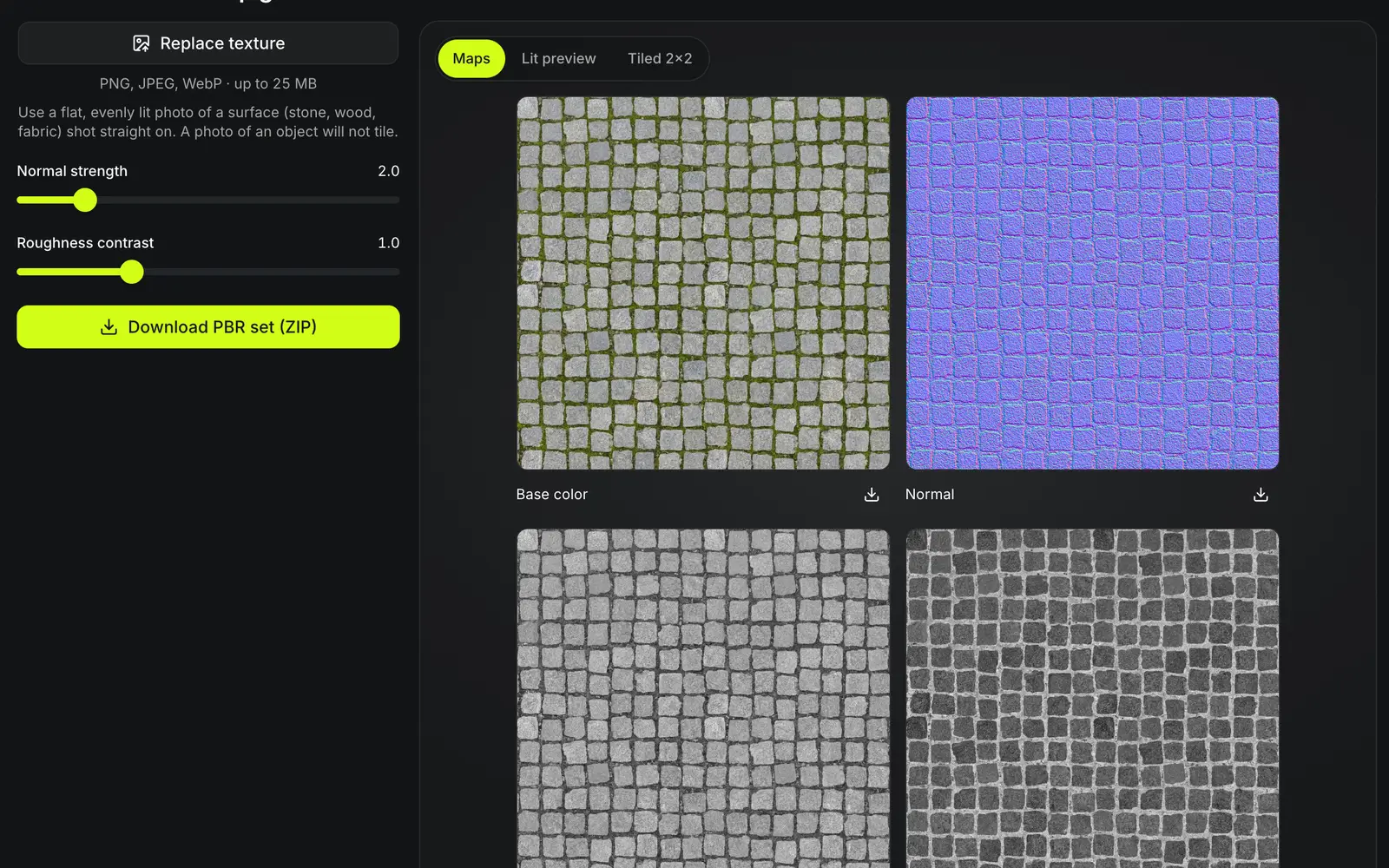
One cobblestone texture through the normal map generator
A real run at the default settings, normal strength 2 and roughness contrast 1, on a generated top-down cobblestone image. The four tiles below are the files the tool saved.
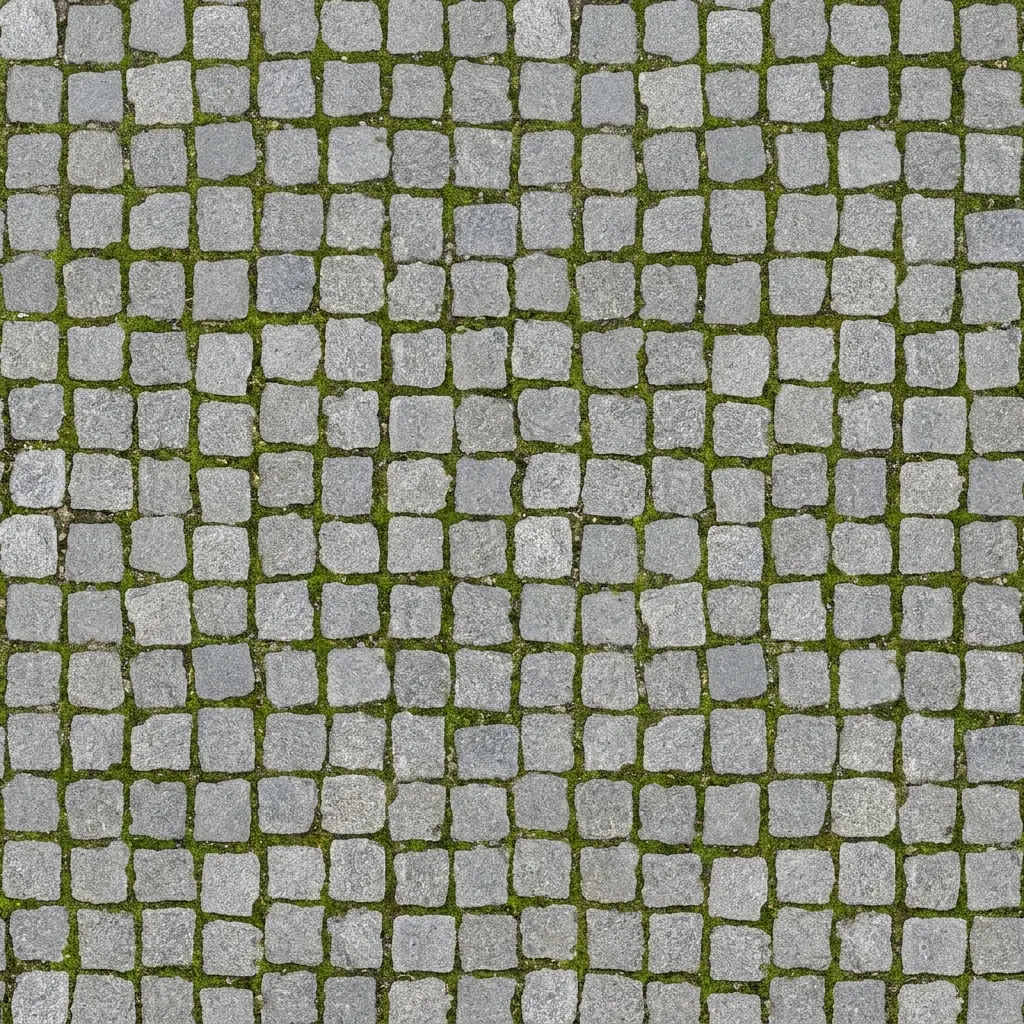
Base color
The source image, unchanged
The base color map is the source image itself, so any shadow in it stays in the color.
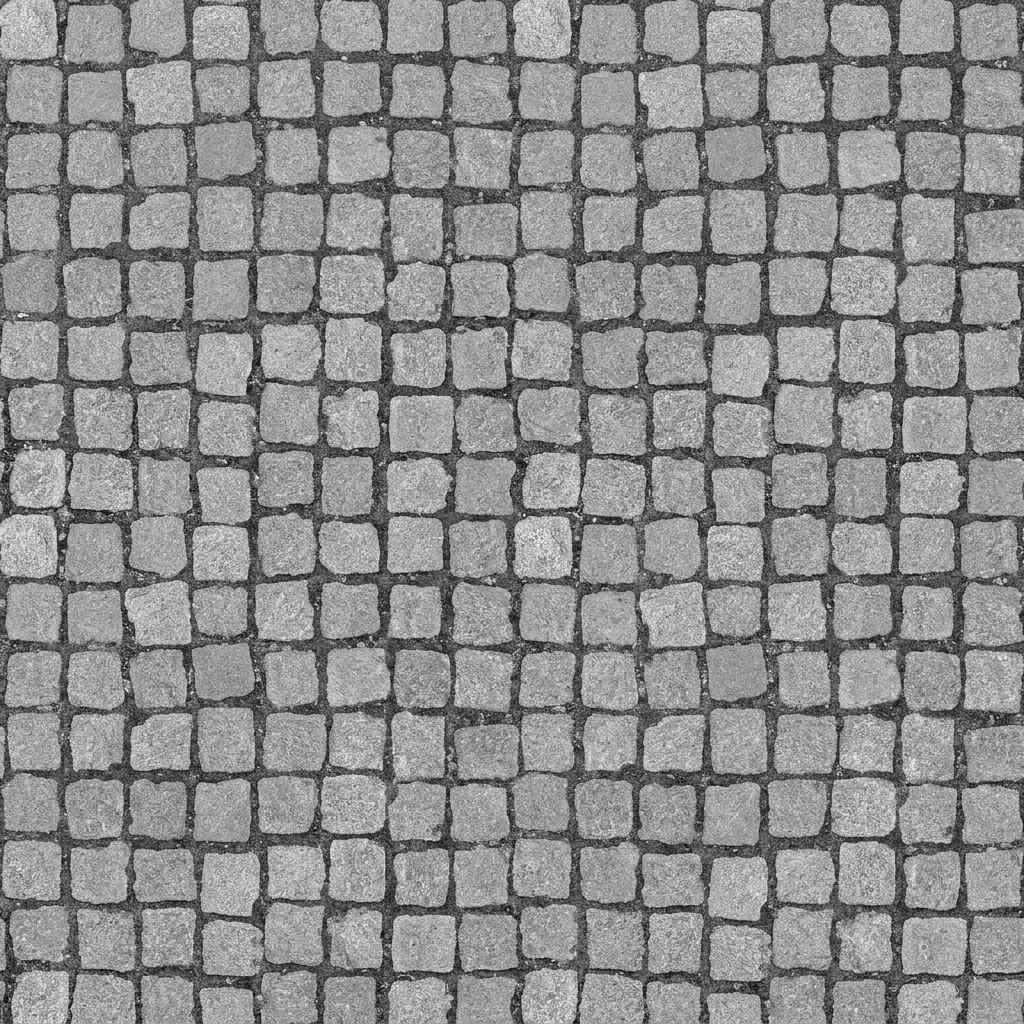
Height
Grayscale, light is high
Stone tops read light and the mossy joints read dark, which is the relief the other two maps are built from.
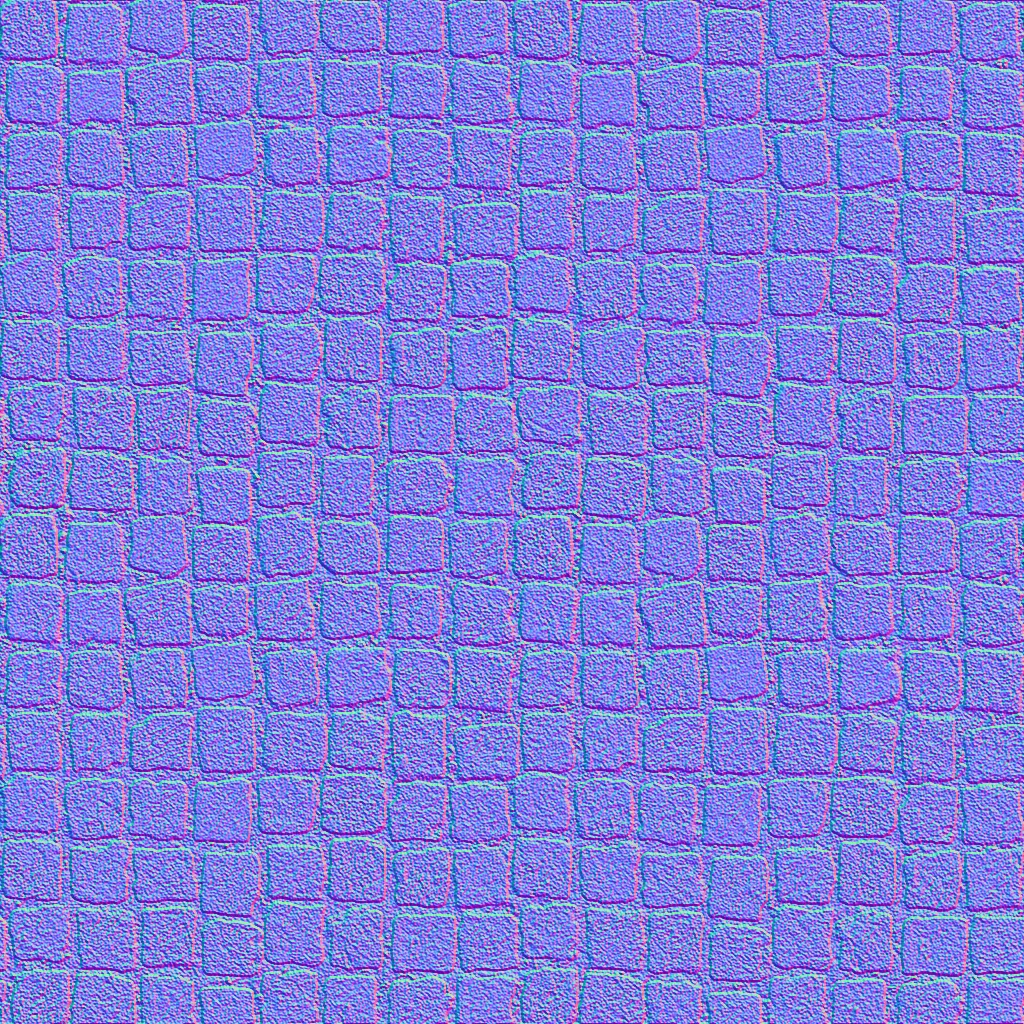
Normal
Surface direction from the height
The purple-blue map a game engine reads to light each stone edge as if it had depth.
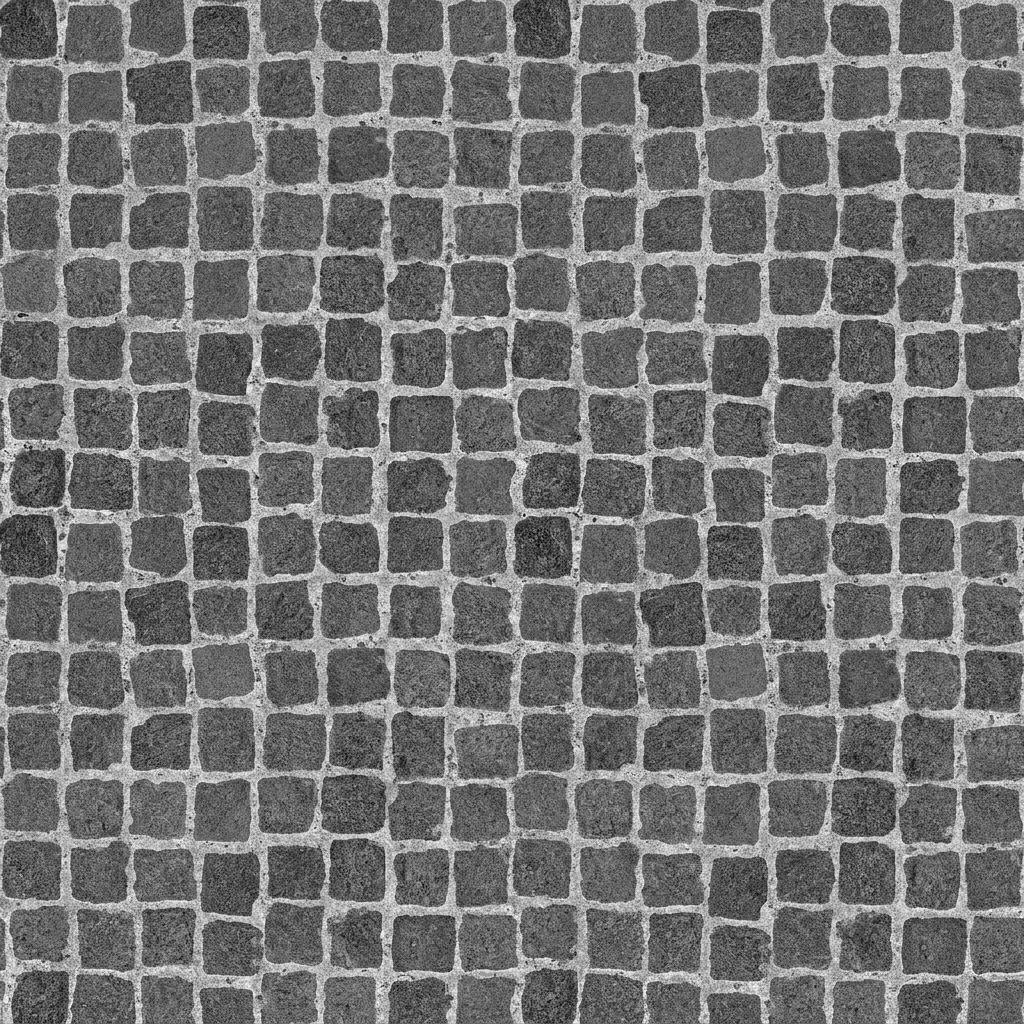
Roughness
The height map, inverted
Raised stone tops come out darker, which reads as smoother, and the recessed joints lighter and rougher.
Maps from one photo
How the normal map generator builds each map
Every map is derived from the photo’s brightness, so the set stays aligned pixel for pixel.
Height from brightness
Lighter pixels read as higher; the height map is the grayscale starting point for the others.
Normal from height
A Sobel filter turns height changes into surface direction, scaled by the strength slider.
Make a photo tile
Make it tile blends the edges so opposite sides meet — both ways, or only horizontally or vertically — and every map is built from the tiled picture.
Lit and tiled previews
Lit preview lays the maps on a flat surface under a light that follows the pointer; Tiled 2×2 repeats the set so a seam shows before download.
Make a PBR set in three steps
Everything runs in the browser tab: the photo is never uploaded and no credits are used.
- 1
A PNG, JPEG or WebP of up to 25 MB, shot flat and evenly lit, from your device or your Library. The four maps appear side by side as soon as the photo loads.
- 2
Normal strength runs from 0.5 to 10 and roughness contrast from 0.2 to 3. Pushed to 10 and 1.8, the stone edges in the normal map and the joints in the roughness map get much harsher.
- 3
Tiled 2×2 repeats the set so a seam shows before you save. Download one PNG per map, or the whole set as a ZIP.
Limits of the normal map generator
Brightness is a stand-in for depth.
Painted-on detail reads as depth
Dark stains or printed patterns can show up as dents.
Lighting is baked in
Shadows in the photo end up in the base color map.
Blended edges look soft
Make it tile cross-fades a band along the edges; bricks and other regular patterns show a ghosted strip there. The AI seamless texture generator redraws the surface instead, for credits.
No metalness map
The set is base color, normal, height and roughness.
Use the maps on a model
Maps pair with the model tools.
Questions about the normal map generator
Answers about making normal maps and PBR maps from a photo.
Make a map set now
Choose a texture photo and download four PBR maps.