
Make AI videos and voice-overs
Turn a picture, a render of your model or a prompt into a short video, rework a clip you have, and add a spoken line with the AI voice generator.
Guide 6 of 10Video and voiceBeginner6 min read
A 3D model can be shown as a generated video, as a spin of the real mesh, or as a clip with a voice laid over it. This guide makes a short video in the AI video maker, reworks a video you already have with its video tools, and adds a spoken line with the AI voice generator.
Step 1: Choose how the clip starts
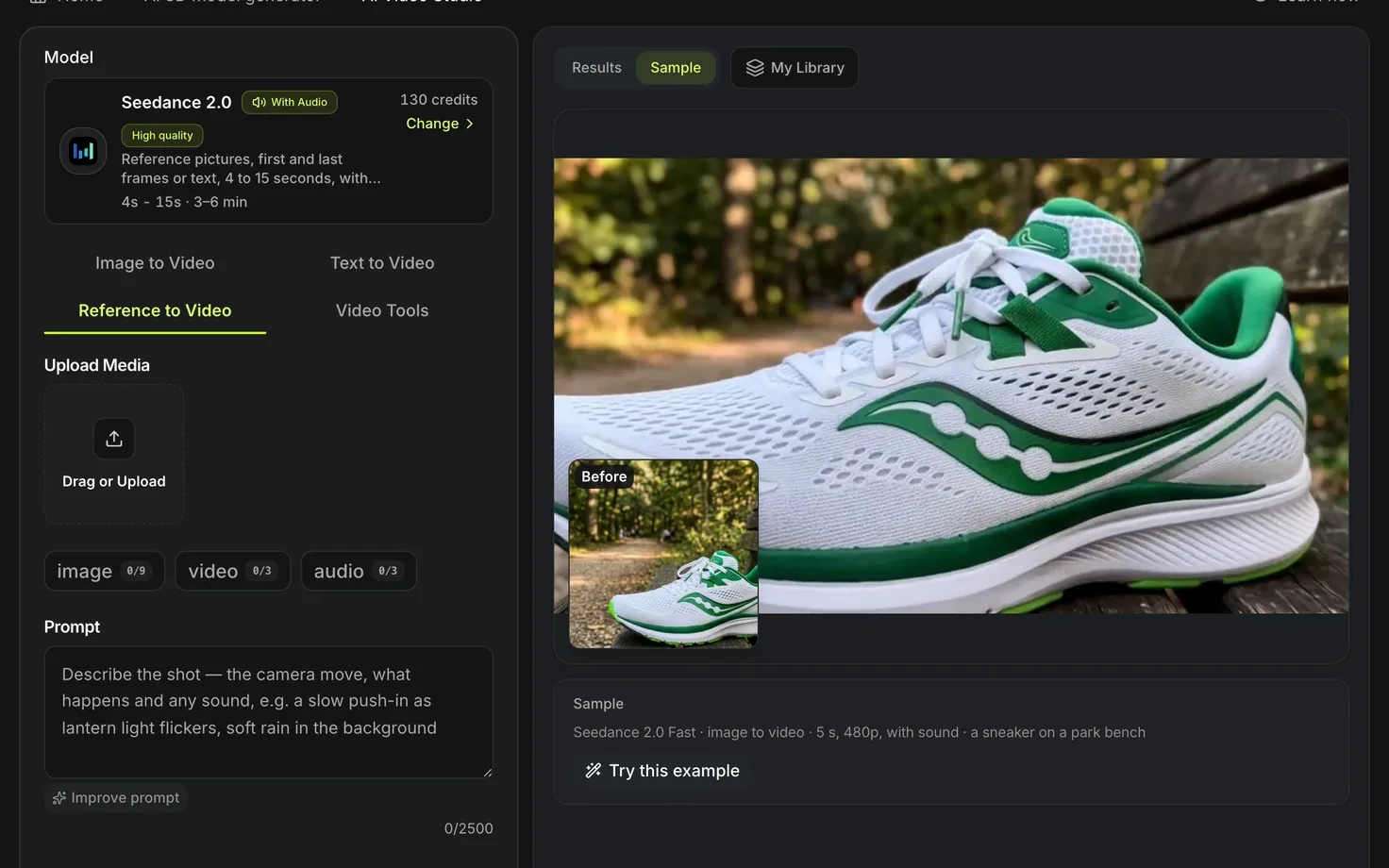
Open the AI video maker. Its tabs decide what the clip is made from, and each tab lists only the models that take that input.
- Image to video starts from your picture, such as a render of your 3D model. Every model takes one, and most accept a second picture as the end frame.
- Text to video writes the clip from the prompt alone. Kling 2.1 Pro and Kling O1 need a picture, so they appear under Image to video only.
- Reference to video gives Seedance 2.0, Seedance 2.0 Fast or Seedance 2.0 Mini several reference pictures, which set a character, a product or a style for a new shot instead of a first frame.
- Video tools works on a video you upload; see Step 5.
To animate a model you made here, press Animate as a video on a finished 3D result. It opens 3D model to video, the studio's Image to video tab with a prompt written for camera moves around a model, with the model's picture as the start frame.
Step 2: Pick a model
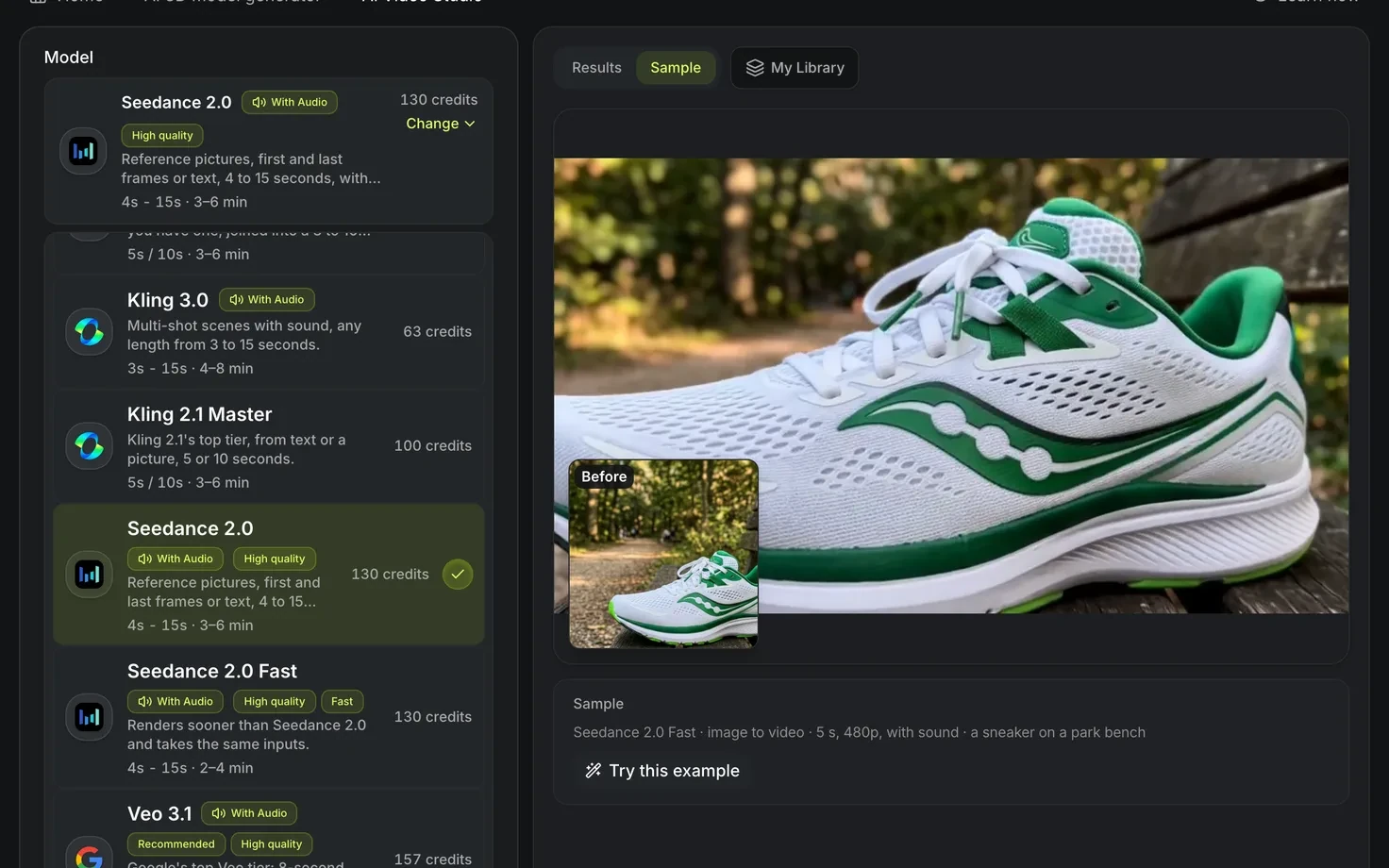
The picker shows each model's length, typical time and price for the tab you are on, and the button shows the exact price for your settings before you run. Try a prompt on a cheap model before you spend on a long clip.
| You need | Look at |
|---|---|
| A cheap first try | Seedance 1.0 Pro, Veo 3.1 Lite, Kling 2.5 Turbo |
| Sound with the clip | Veo 3.1, Veo 3.1 Fast, Kling 3.0, Kling 2.6, Seedance 2.0, Seedance 1.5 Pro |
| A longer clip or a few shots | Kling 3.0, which joins several shots, and Seedance 2.0 |
| A sharper picture | Veo 3.1, which renders up to 4K |
| A start and an end picture | Kling O1, in Standard or Pro |
| The same character or style | Seedance 2.0, Seedance 2.0 Fast or Seedance 2.0 Mini on the Reference to video tab |
Step 3: Describe the shot
- Write the camera move and the action first, then the subject, the setting and the style. For a model with sound, name the sound in the prompt: speech in quotation marks, effects and the background.
- Press Improve prompt for one rewrite of your draft in the order video models read best, with speech and sound cues kept. Undo puts your draft back. It costs no credits and has a daily limit.
- Add the picture or pictures the tab asks for, then set the length and resolution the model offers.
Step 4: Run it and download
Press the button, which shows the price, and download the MP4 when the clip is ready; the model card shows a typical time range. Finished clips are saved in My Library. A run that fails gives its credits back.
To build a model from a frame of the clip, take the frame into Image to 3D.
Step 5: Rework a video you already have
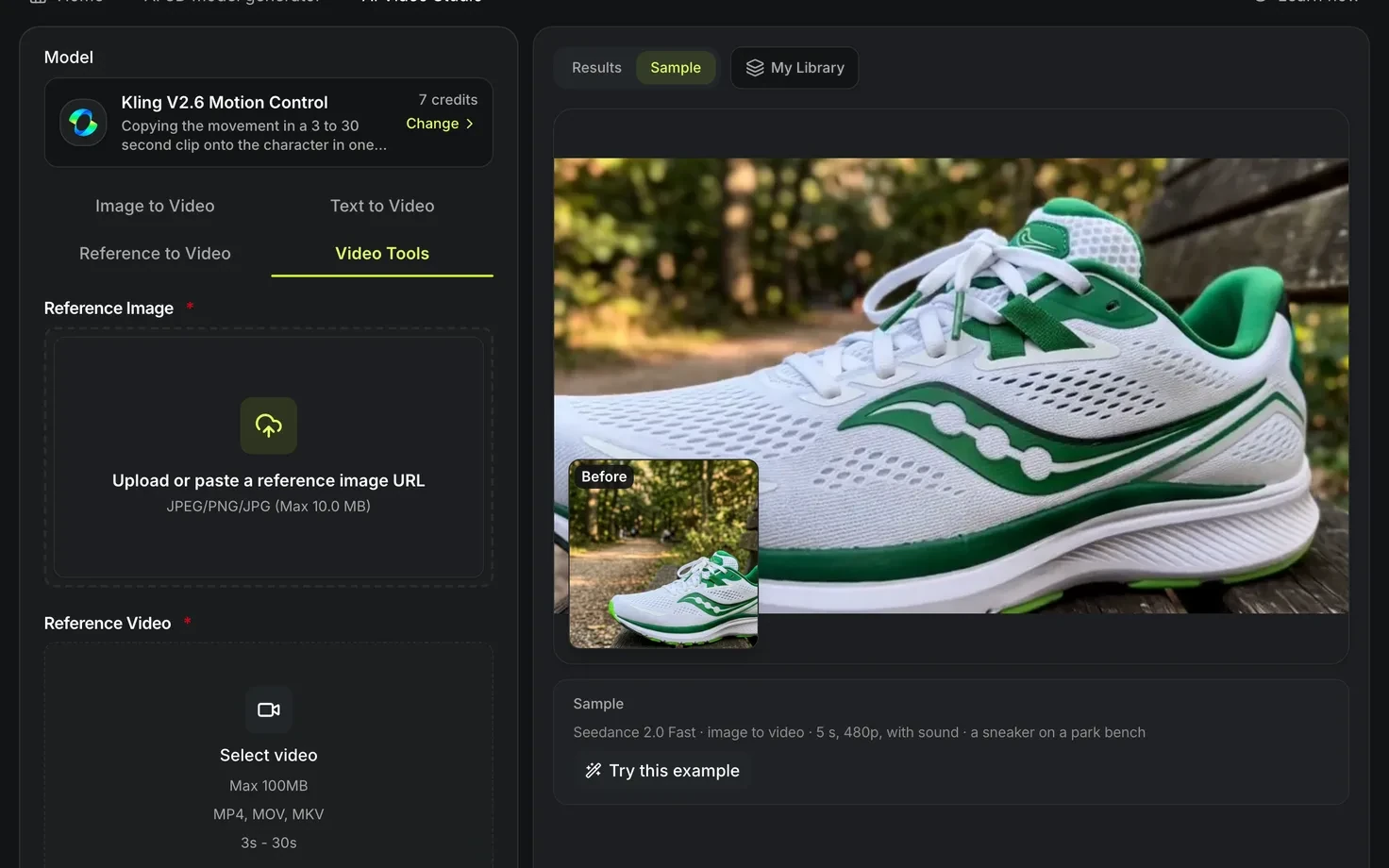
The Video tools tab takes a video you upload and returns a video. Each tool bills the length of the file, counted in whole seconds and rounded up, which our server measures again after the upload; the price in the form is a draft until then.
| Tool | Takes | Gives | Credits per second |
|---|---|---|---|
| Background removal | Up to 60 seconds and 100 MB, MP4, MOV or WebM | A WebM with transparency, or an MP4 on black, white, green or blue | 7 |
| Video edit | 3 to 10 seconds, up to 200 MB, MP4 or MOV, and a written instruction | The same clip changed, as long as the one you gave | 21 |
| Motion control | 3 to 30 seconds, up to 100 MB, MP4, MOV or MKV, and a picture of a character | The character moving like the clip, as long as the clip | 7 at 720p, 12 at 1080p |
Background removal keeps the sound unless you switch it off. Chrome, Edge and Firefox play the transparent WebM with the background showing through; Safari does not, so choose a solid color for a clip that has to play there.
Step 6: Add a voice
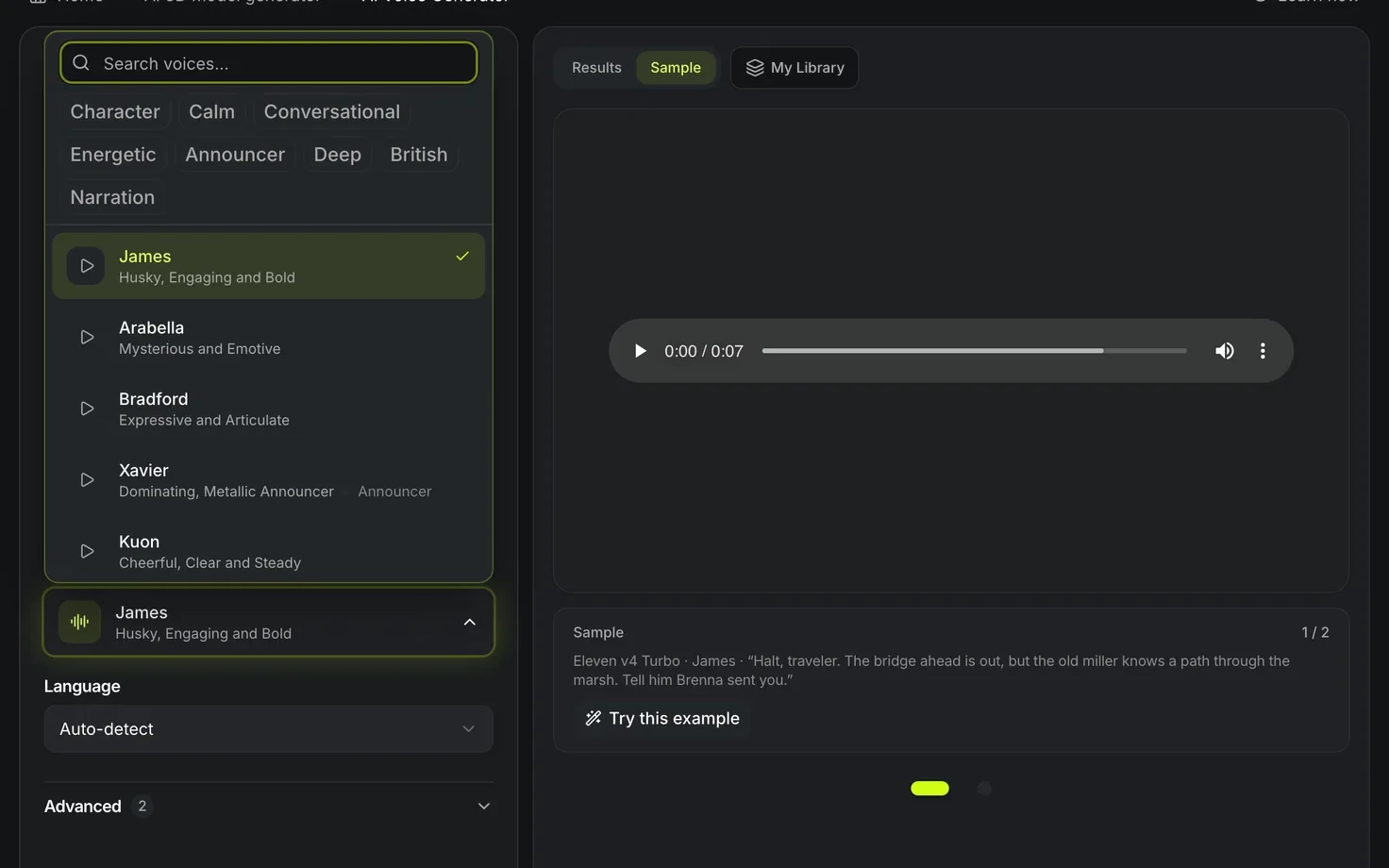
- Open the AI voice generator and paste the line, up to 5,000 characters. The cost line counts the characters as you type.
- Pick one of the 67 premade ElevenLabs voices. Search by name or tap a filter such as Deep, Calm or Narration, and play any voice's preview, which is free.
 3. Choose a model. All five read the same text with the same voices; they differ in price, language control and settings.
| Model | Credits per 1,000 characters | Languages |
|---|---|---|
| Eleven v4 Turbo | 5 | 90+ |
| Turbo v2.5 | 6.25 | 31 in the language setting |
| Eleven v4 | 10 | 90+ |
| Eleven v3 | 12.5 | 70+ |
| Multilingual v2 | 12.5 | 29, found from the text |
- Under Advanced, stability, similarity, style and speed change how the voice sounds; not every model takes all four.
- Generate, play the result and download it. The total is rounded up once, so a short line costs a credit, not a full block.
The voice generator makes audio only. Lay it over the clip in a video editor.
Show the real mesh instead
A generated video invents whatever the picture hides, so a long orbit around a character can wander from the mesh you made. Turntable video renders the mesh itself turning a full circle in your browser, free, as an MP4 or a transparent WebM.