
How to rig and animate a 3D character
Give a character a skeleton with Auto-Rig, then put ready-made walk, run and dance clips on it with the free Animation Library, step by step.
Guide 5 of 10Make and refineIntermediate6 min read
A static mesh can be placed in a scene but not moved. Rigging adds a skeleton and binds the surface to it, and animation clips then move that skeleton. This guide rigs a character with Auto-Rig and animates it with the Animation Library, which is free and runs in your browser.
Step 1: Start from a character with clear limbs
The rigger finds joints by reading the gaps between limbs, so the pose of the source model decides how cleanly it bends. A standing figure without a base rigs best, with its arms and legs clearly apart.
- Models that can build a character in a rig-ready pose: Rodin Gen-2.5 has a T/A-pose character switch in its advanced settings, and Meshy 7.1 has a Pose setting with Natural, A-pose and T-pose.
- For an existing picture, redraw the character first in the AI Pose Changer, where T-pose and A-pose sit under For rigging, then run Image to 3D on the result.
- For a character you want from all sides, the Character sheet offers a T-pose (for rigging) and builds the model from four views. Make and prepare pictures in Image Maker walks through it.
Step 2: Rig the model
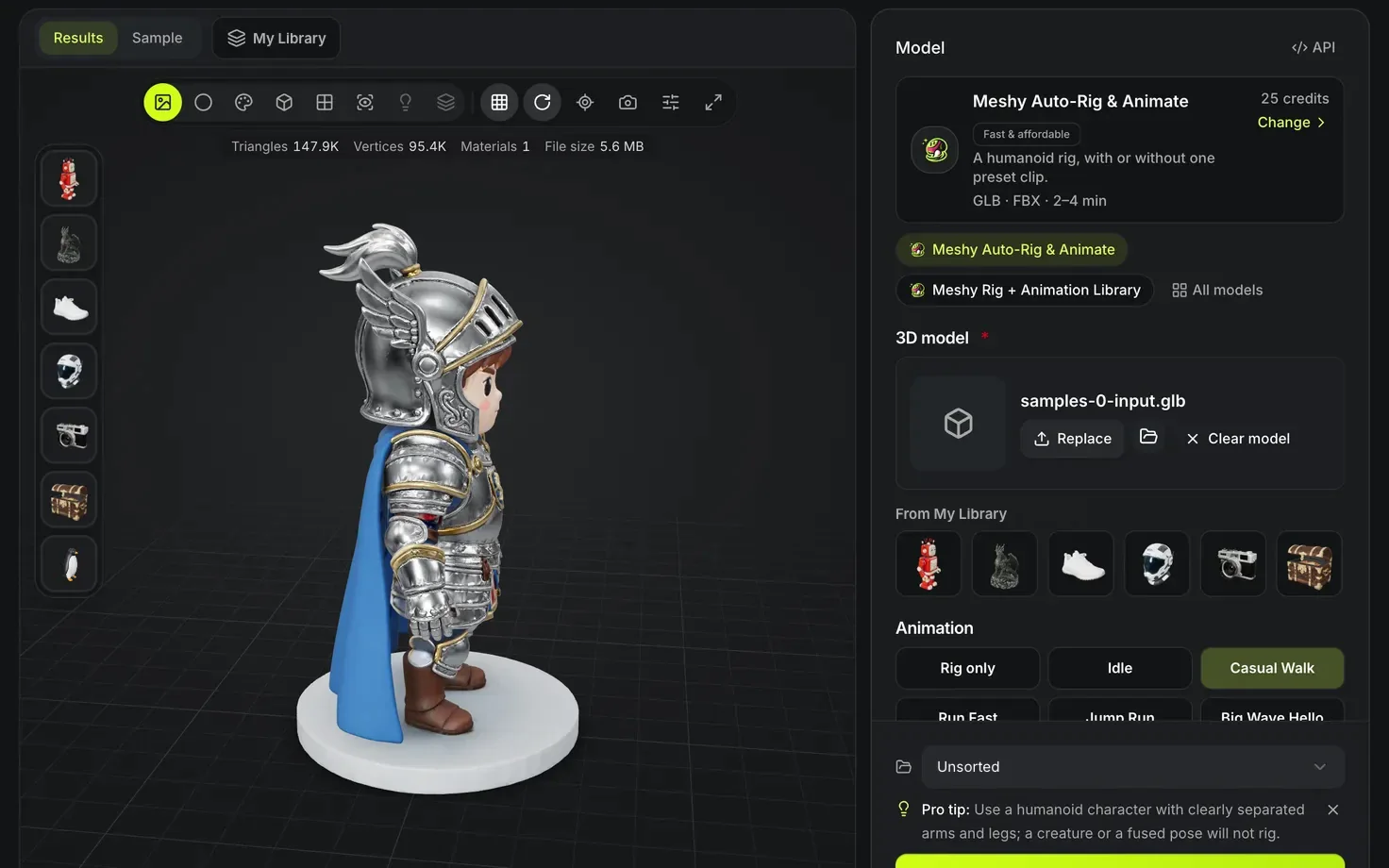
- Open Auto-Rig, or press Rig & animate a character on a finished result; that button is meant for characters only. Load the model in the 3D model field.
- Pick an engine from the model list: Meshy Auto-Rig & Animate or Meshy Rig + Animation Library for a humanoid, Tripo Auto-Rig for any other body plan.
| Engine | Skeleton | Accepts | Returns |
|---|---|---|---|
| Meshy Auto-Rig & Animate | Humanoid, with an optional preset animation | GLB | GLB, FBX |
| Meshy Rig + Animation Library | Humanoid, with 1 to 10 clips from Meshy's library | GLB | GLB, FBX |
| Tripo Auto-Rig | Biped (humanoid), Quadruped, Hexapod, Octopod, Avian, Serpentine or Aquatic, with Tripo or Mixamo bone names | GLB, FBX, OBJ, STL | GLB |
- Set the options.
- Meshy: Animation is Rig only or one of nine presets: Idle, Casual Walk, Run Fast, Jump Run, Big Wave Hello, Funny Dancing, Attack, Double Combo Attack and Chair Sit Idle. In the advanced settings, Character height is 0.3, 1.0, 1.7 or 2.5 m, and 1.7 m is the default. A preset animation adds to the price.
- Meshy Rig + Animation Library: Animation clips opens the library of 656 clips in a dialog. Search by name or filter by Walk and run, Daily actions, Fighting, Body movements or Dancing, then pick 1 to 10; Casual Walk is chosen at first. Each pick shows as a chip you can take off, and the line under the field says what one more clip adds. Character height is set as for Meshy Auto-Rig & Animate.
- Tripo: Skeleton is the body type, and Bone naming is Tripo or Mixamo.
- Read the cost line and press Generate.
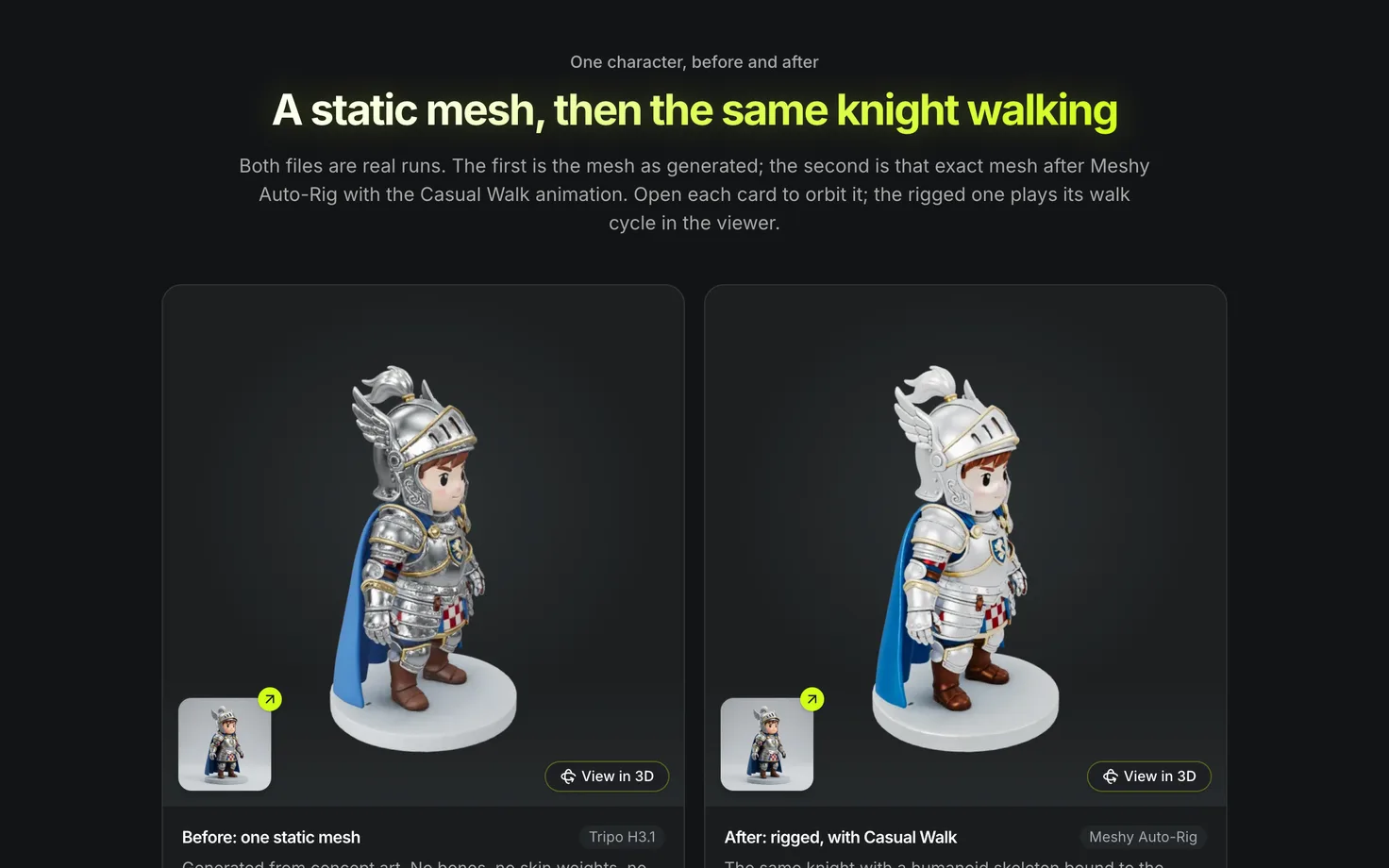
- Play the result in the viewer and watch the joints. Loose clothing such as a cape follows the nearest bone and can deform oddly. With the library engine, a row of Animation clips under the viewer switches between the clips, starting with the first you picked, and Rigged, no clip shows the skeleton at rest. The Formats list gives every clip its own GLB and FBX, named by clip.
Meshy reads only GLB. To use an OBJ, FBX or STL with it, convert the model to GLB first in the download panel, which converts in your browser, or use Tripo Auto-Rig, which reads those formats directly.
Step 3: Add animations for free
- Open Animation Library, or press Add animations on a rig result. The button appears only after a rig.
- Open a rigged character: a GLB, glTF or FBX with a humanoid skeleton from Auto-Rig, Mixamo or Blender Rigify. If the tool cannot read a humanoid rig it says so and suggests rigging with Auto-Rig first.
- Pick clips. They are grouped as Move, Idle, Action, Combat and Dance. Preview each on your character, and add up to 12 clips to the download.
- Set Movement to In place (for games) or Travel forward.
- Download the GLB. It holds your model with every chosen clip baked in, ready for a game engine, Blender or three.js.
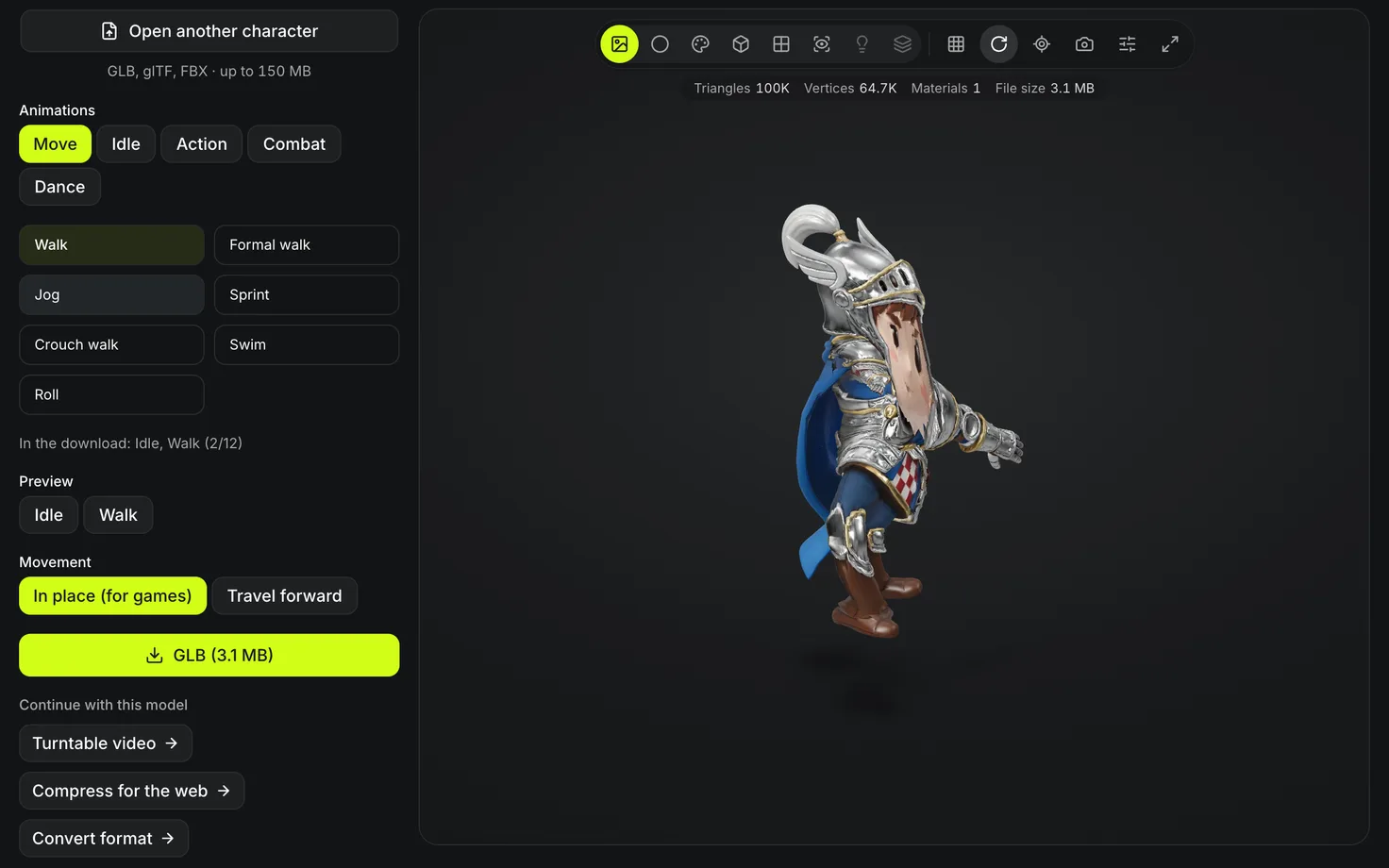
The clips come from the Universal Animation Library by Quaternius, released under CC0, so they are free for any use. Nothing is uploaded and the tool costs no credits.
When the library has no clip for what you need
- Text to Motion builds one humanoid motion clip from a written description and returns it as an FBX. Describe one body movement from start to finish, for example a person who runs, then takes a big leap.
- Animate as a video on a finished result opens the image-to-video generator with the model's picture as the start frame. It makes a video, not an animated model.
- The AI video maker is the same generator with three tabs: Image to video, Text to video and Reference to video, over a list of models that each show their length, typical time and price. Use it when the clip does not start from a model's picture; Make AI videos and voice-overs walks through it.
- Turntable video renders a looping spin of any model in your browser, free.
- The AI voice generator reads text aloud in an ElevenLabs voice you choose from its list, for a clip's narration or a character's line. It makes audio only, priced by the character, and you lay it over the video in an editor.
What the clips cannot do
The library clips are humanoid, so four-legged, winged or snake rigs from Tripo Auto-Rig have no matching clips and need their own animation. The clips move the body, arms, legs and head; fingers keep their rest pose. A very large head or very long arms can make hands meet the body in a punch or a sit, so check each clip in the preview.