
How to build an AI 3D pipeline
Link image and 3D steps into a pipeline, run them from one panel, run it as an app or once per row of a file, and share it as a starter, step by step.
Guide 7 of 10Make and refineIntermediate7 min read
A pipeline is a set of linked steps that you build once and feed new inputs as often as you like. One run can turn a picture into four views, the views into a 3D model, and give the model a new texture. This guide builds a pipeline in Pipelines, runs it, collects its results, runs it in batches and shares it as a starter. For a one-page summary of what a pipeline holds and what it costs, see the AI 3D workflow builder page.
Step 1: Start a pipeline
- Open Pipelines and press New pipeline. Give it a name and an icon, then choose a starting point: an empty pipeline, one of the examples, one of your saved starters, a shared starter, or Describe it.
- Describe it turns a sentence such as "From a product photo, cut out the item and make a 3D model ready to print" into a draft pipeline you can edit. Drafting runs no steps, costs no credits and has a daily limit.
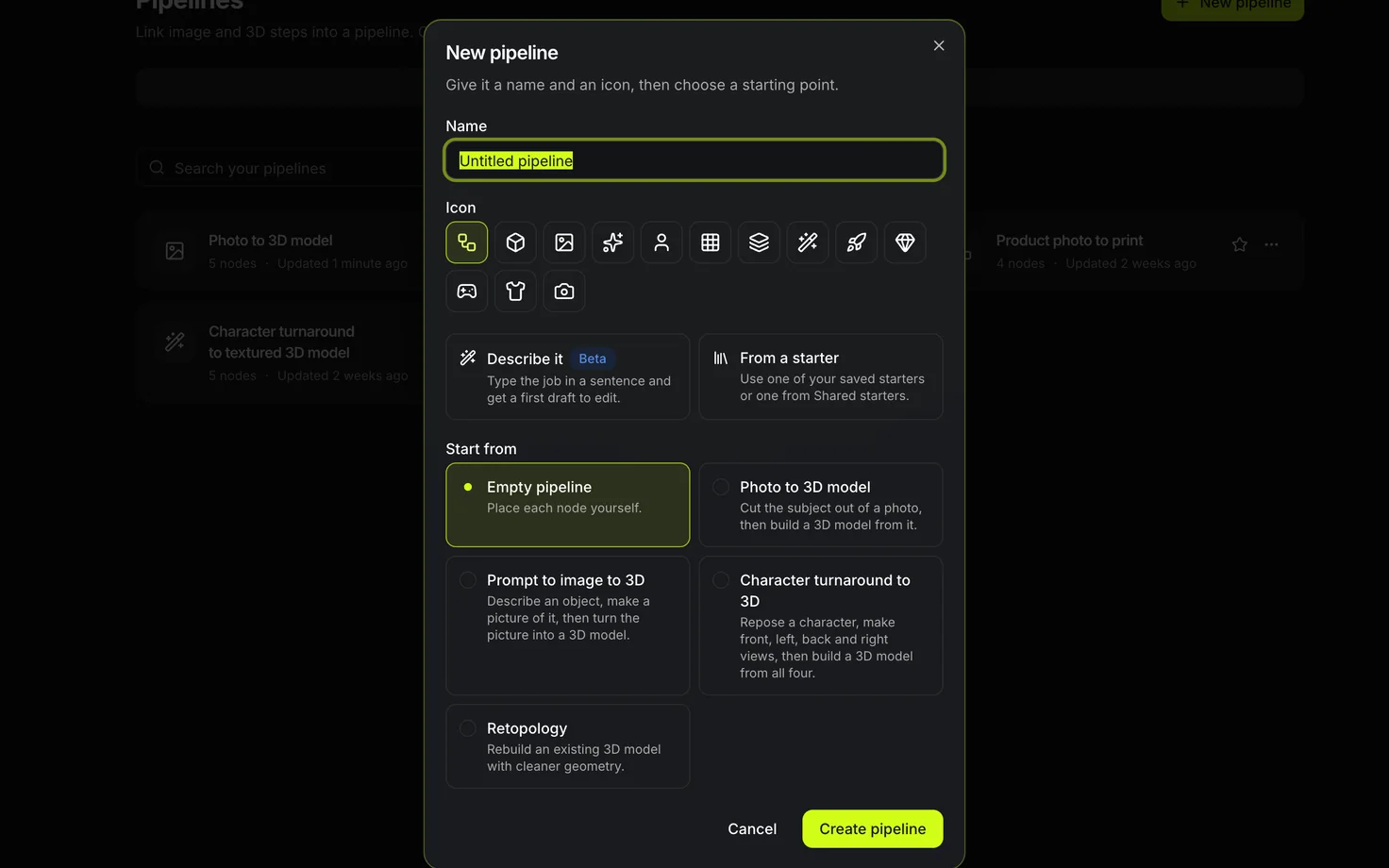
My pipelines lists everything you have built. You can search it, show only starred pipelines, and sort by name or by when you last edited each one.
Step 2: Add and connect steps
-
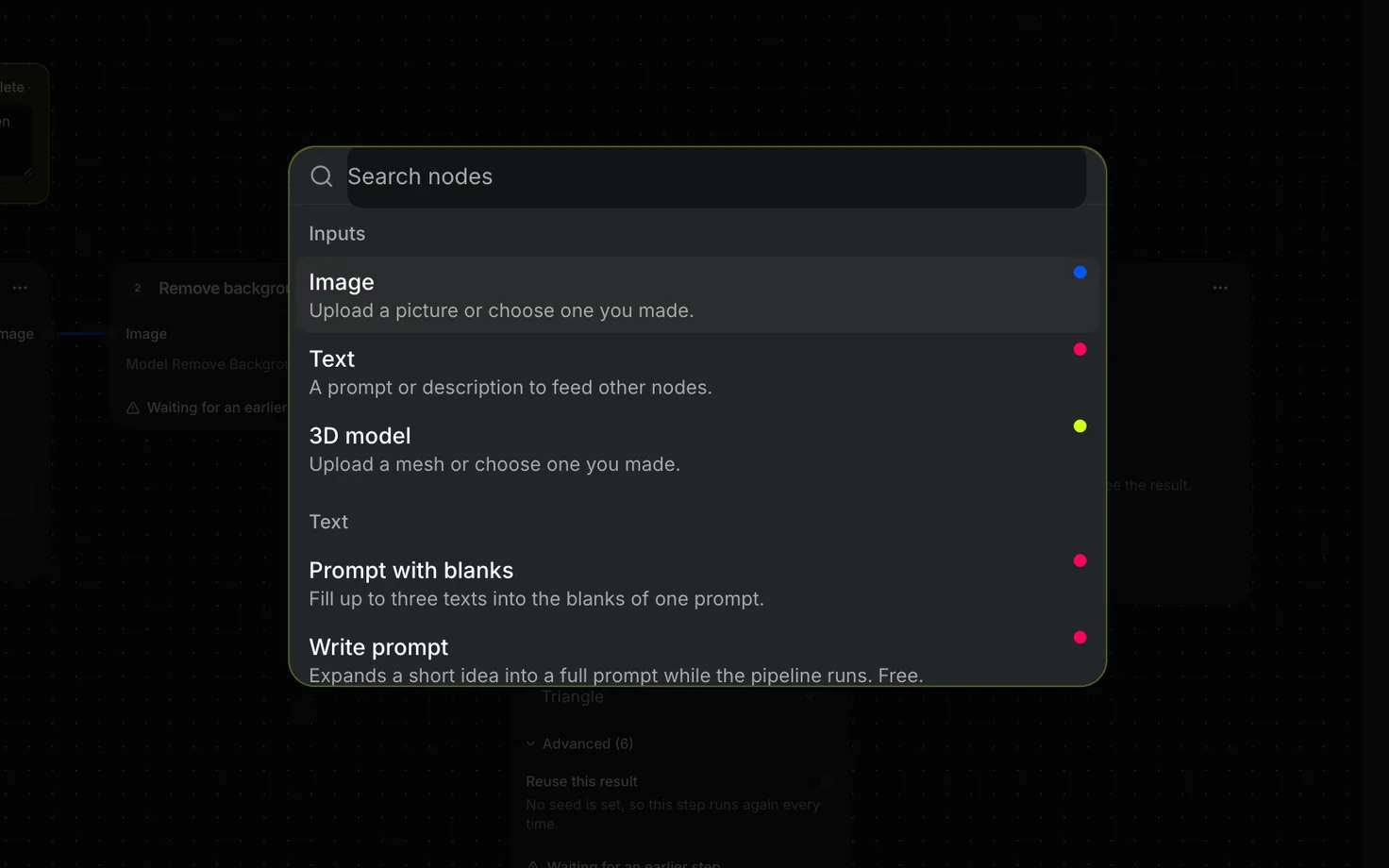
Press Add, or the space bar, and search for a node. The list is split into Inputs, Text, Image, 3D, Logic, Previews and outputs, and Notes.
-
To connect two steps, drag from an output port to an input port. A port takes only what it can use, and the Add list can narrow itself to the nodes that fit the port you dragged from.
-
Inputs hold what a run starts from: an Image (upload a picture or choose one you made), a Text, or a 3D model.
-
Prompt with blanks fills up to three texts into one prompt; put
{a},{b}and{c}in the text where each input belongs. Write prompt expands a short idea into a full prompt while the pipeline runs, for free.Text AI asks a language model (Gemini, in three tiers: Fast and Balanced for 1 credit, Quality for 3) about a prompt and up to three pictures in the middle of the run, so it can read a picture the run itself just made. Connect its text to a step's Prompt; that step reads it when it starts. Prompt with blanks, a Switch, Write prompt and Name the file all settle their text before the run begins, so they cannot take it.
-
Every step that makes something has its own model and settings, the same ones its tool page offers. A step with a fixed seed and Reuse this result on is skipped on a re-run as long as nothing about it changes.
-
Some image steps are presets from the tool pages: Pose changer, Style transfer (the looks of AI style transfer) and Extract part, which lifts one part out of a picture, completes it and sets it alone on white. Pick the part from its list or type your own; for several parts, add one Extract part step per part, all reading the same picture.
-
A Switch passes on one of up to three inputs. Each Switch carries one kind: texts, pictures or 3D models. Set to Pick, it uses the input you choose; set to Auto, it uses the first one from the top that holds something. Only the branch it uses runs, so "use my picture, or generate one" pays for a generation only when no picture was given.
-
Seed shares one seed between several steps: connect it to the Seed input of each. With a number set, they make the same result every run, so Reuse this result can skip them. Left empty, they get a fresh seed every run. A step whose model takes no seed tells you so rather than running unseeded.
When a step cannot run, the canvas marks it and says what to fix.
Step 3: Run it
Open the Run panel. Before you press Run, the button shows the credit price, and the price follows every change you make to the steps. Each step shows where it is: Waiting, Queued, Running, Done, Reused, Skipped or Failed. When a step fails, its credits come back and the steps after it are skipped.
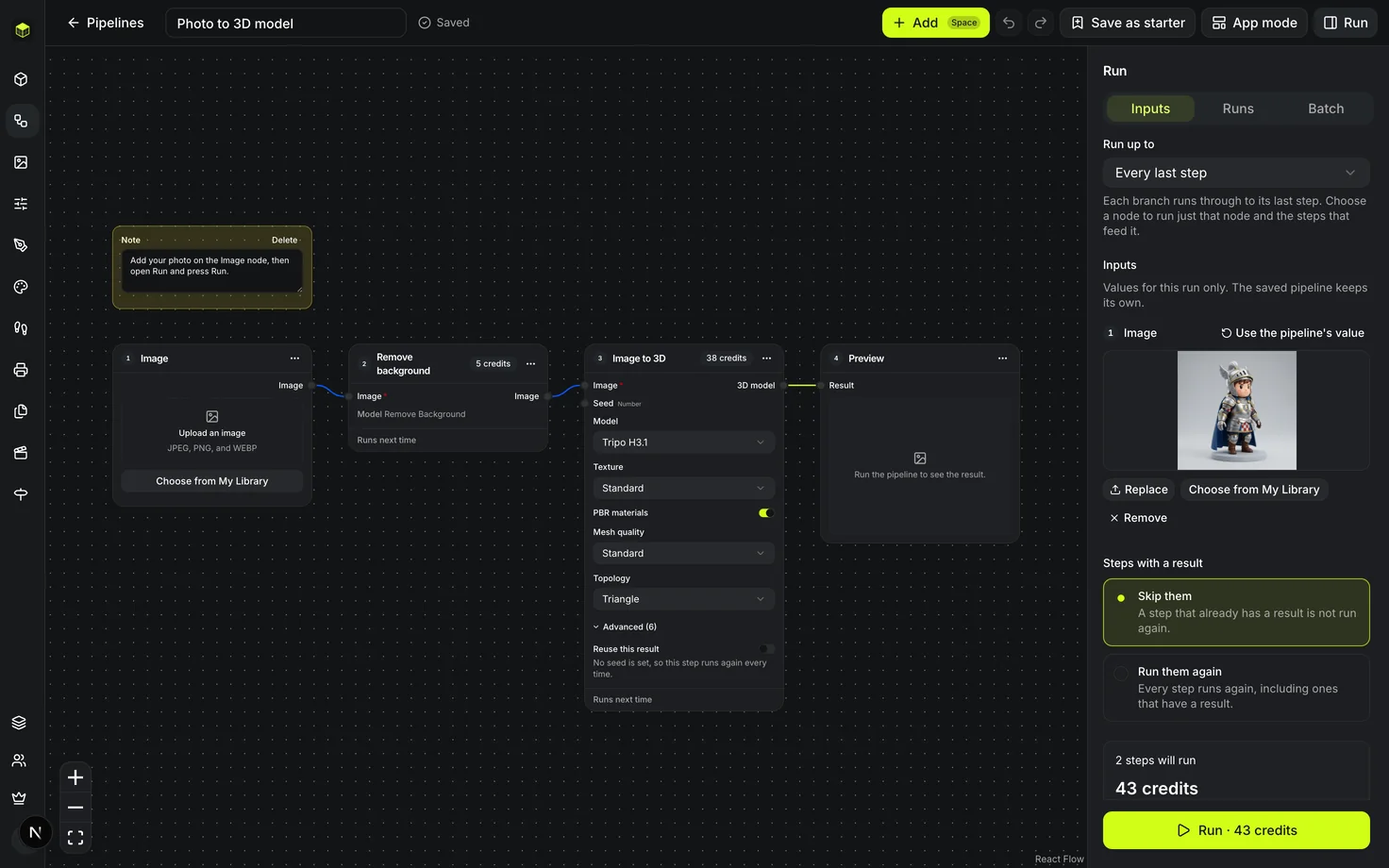
Finished results show on their steps and in My Library, together with the run.
Step 4: Name and collect the results
Three output nodes handle the finished results:
- Name the file sets the name a result downloads with. Type a name or connect a text to it, such as the part of the prompt that differs per result, and turn on Number each new result or Lowercase filenames. The file keeps its own extension.
- Bundle as ZIP packs the results connected to it into one archive. Each file takes the name from the Name the file step before it, or else its step's title.
- File into a project puts the run's results in one of your projects in My Library. If you cannot add to the chosen project, the run is refused before anything is charged.
Step 5: Run it as an app
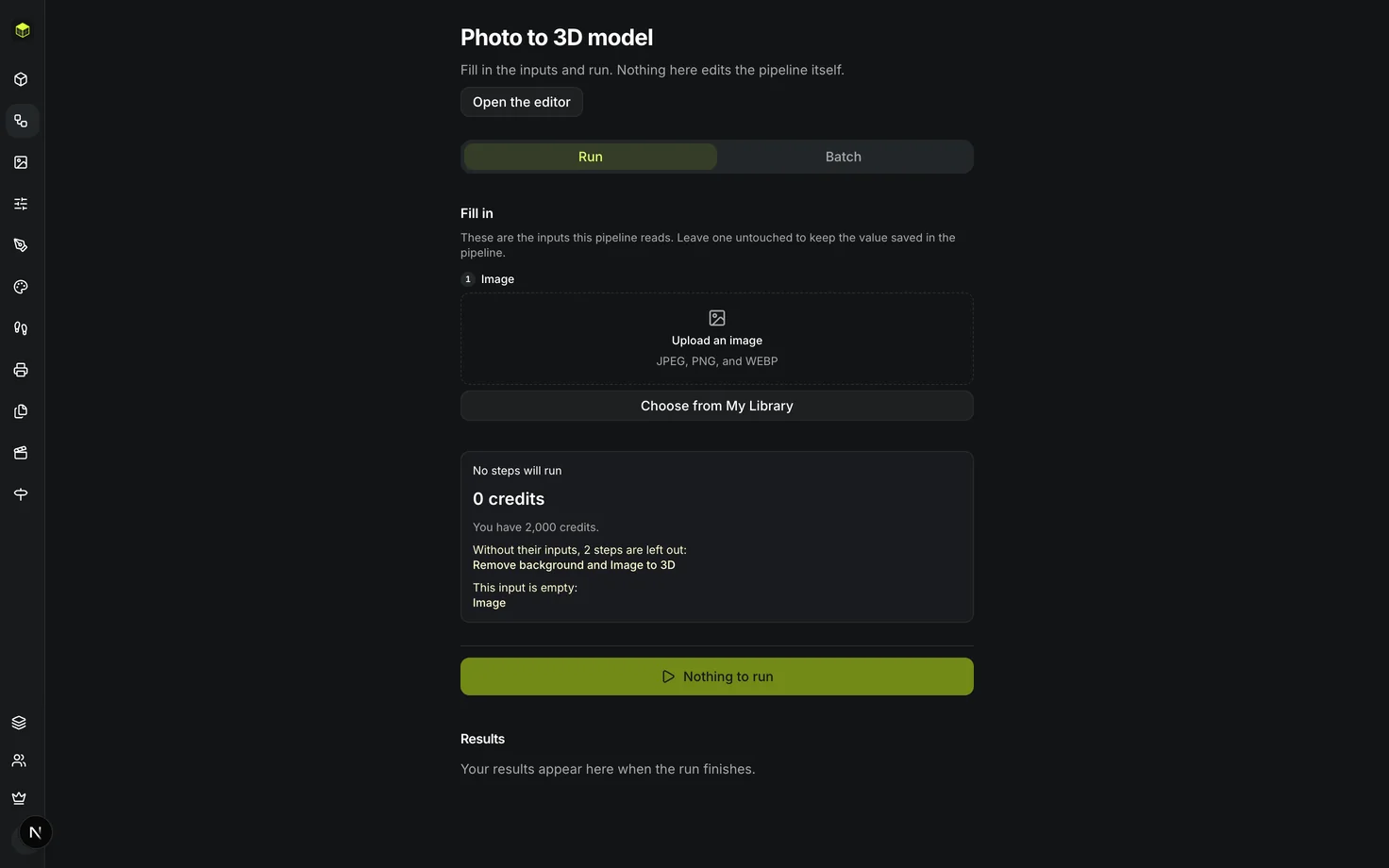
App mode shows only the inputs the pipeline asks for. Fill them in, press Run, and read the results and downloads on the same page. Nothing you do there edits the pipeline, which makes it a good fit for a pipeline you run over and over with new inputs.
A Switch set to Pick turns into a question in App mode: choose which of its inputs this run uses, each named after the step that feeds it. The price follows the branch you choose, and an input that branch does not read says so.
Step 6: Run it for every row of a file
The Batch tab runs the pipeline once for each row of a CSV file. It runs on our servers, so it carries on after you close the tab.
- Download the CSV template. It has a column for each text or picture input of the pipeline, plus one example row.
- Add your file (UTF-8, comma separated, up to 1 MB) or paste the text. Then add the pictures; each goes to the row whose cell holds its file name.
- Check the rows. A row with a problem says what is wrong, and the summary shows the most the batch can cost.
- Start the batch. Nothing is charged until a row starts, a failed row is refunded, and you can retry the failed rows. Download all (ZIP) gathers the results, and Results CSV lists them.
Batch comes with the plans that include it, and each plan sets how many rows one batch can take. A pipeline whose input is a 3D model cannot be batched from a file.
Step 7: Save and share it as a starter
- Press Save as starter. Give it a name, a description, a category and a cover picture taken from the pipeline's results, and choose which results visitors may see. Your own pictures, files and words are never shared.
- The starter waits in My starters, private, until you publish it. Publishing may send it for review first.
- In Shared starters, anyone can open a starter to see its steps, what it needs and what it made. Start from this gives them their own copy, and Open in App mode runs it without the editor.
To file the results of a pipeline by hand, see Organize your 3D models and pictures in the Library.